> ## Documentation Index
> Fetch the complete documentation index at: https://mixroute.ai/docs/llms.txt
> Use this file to discover all available pages before exploring further.
# Kilo Code 外掛(VS Code)
> Kilo Code for VS Code 外掛安裝與配置指南
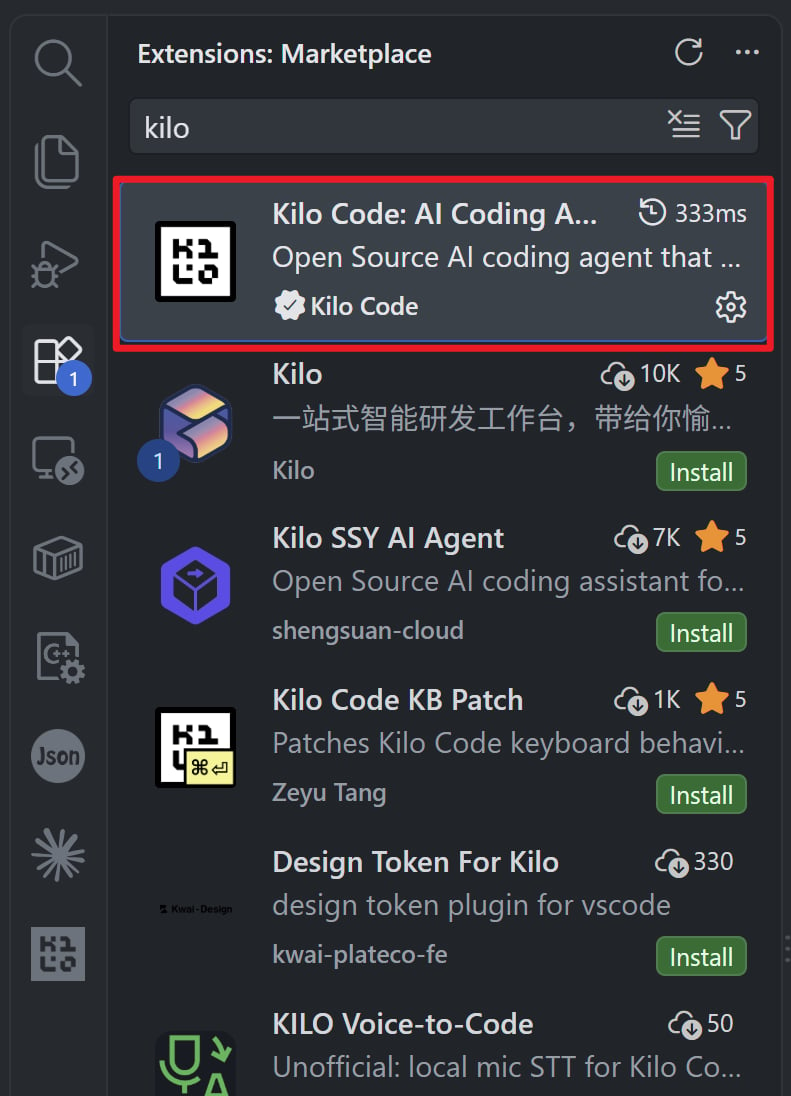
## 第一步:安裝 Kilo Code 外掛
1. 開啟 VS Code 編輯器,進入左側「擴充功能」面板(快速鍵:Ctrl+Shift+X)
2. 在擴充功能市集搜尋「Kilo Code」
3. 點擊「安裝」
 ## 第二步:配置 API 提供商
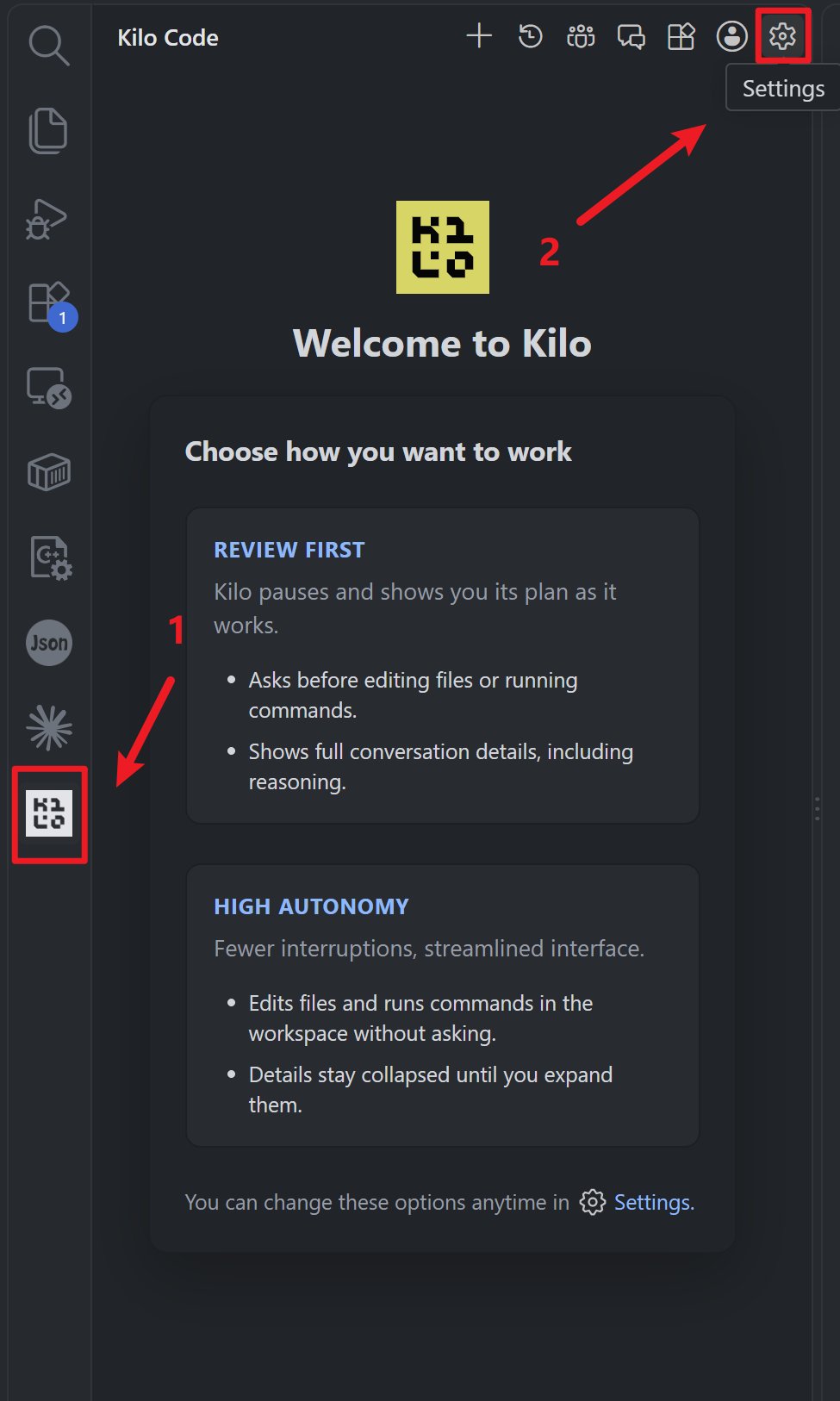
### 開啟設定面板
1. 安裝完成後,點擊左側活動列中的 Kilo Code 圖示
2. 點擊頂部工具列的「設定」齒輪圖示
## 第二步:配置 API 提供商
### 開啟設定面板
1. 安裝完成後,點擊左側活動列中的 Kilo Code 圖示
2. 點擊頂部工具列的「設定」齒輪圖示
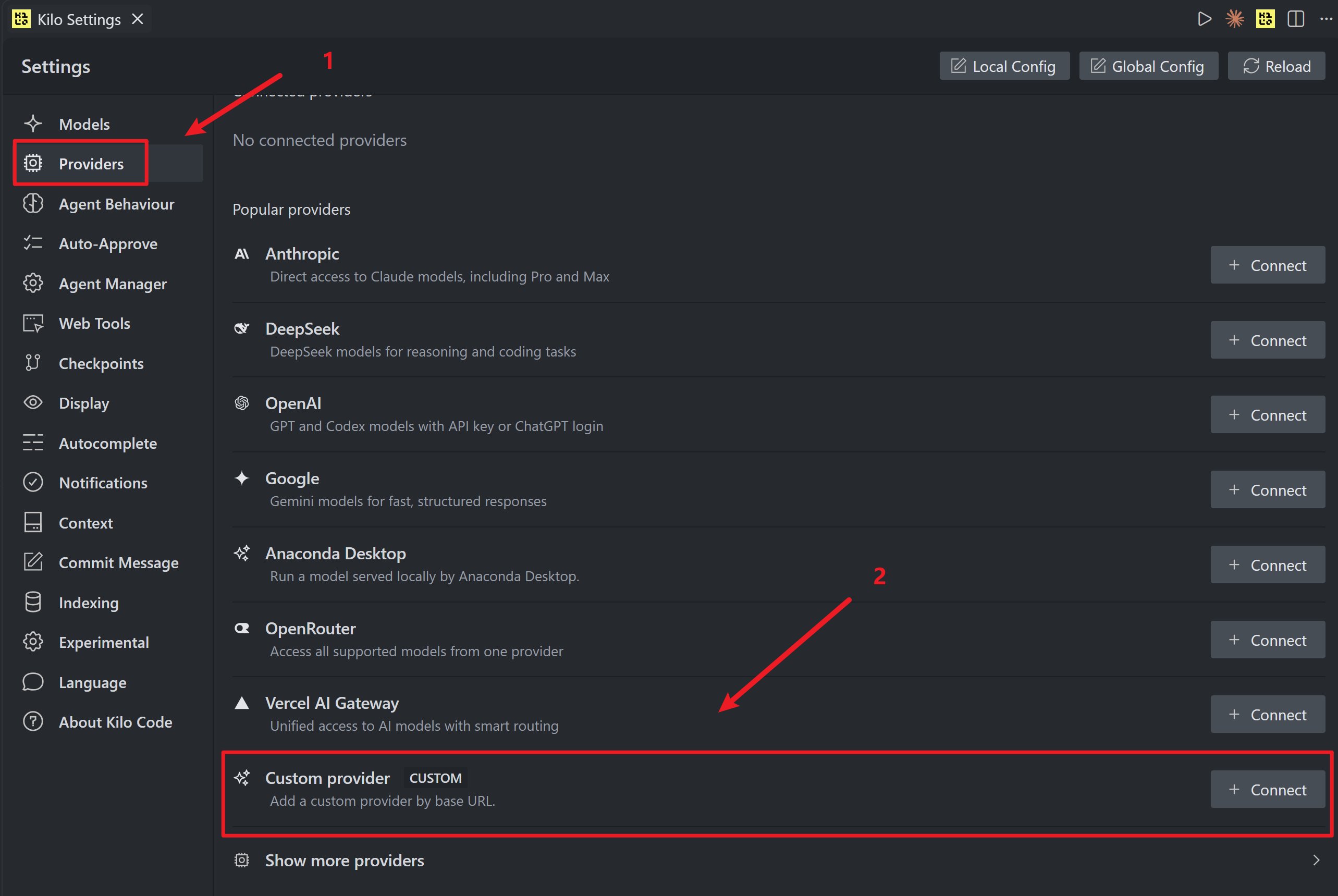
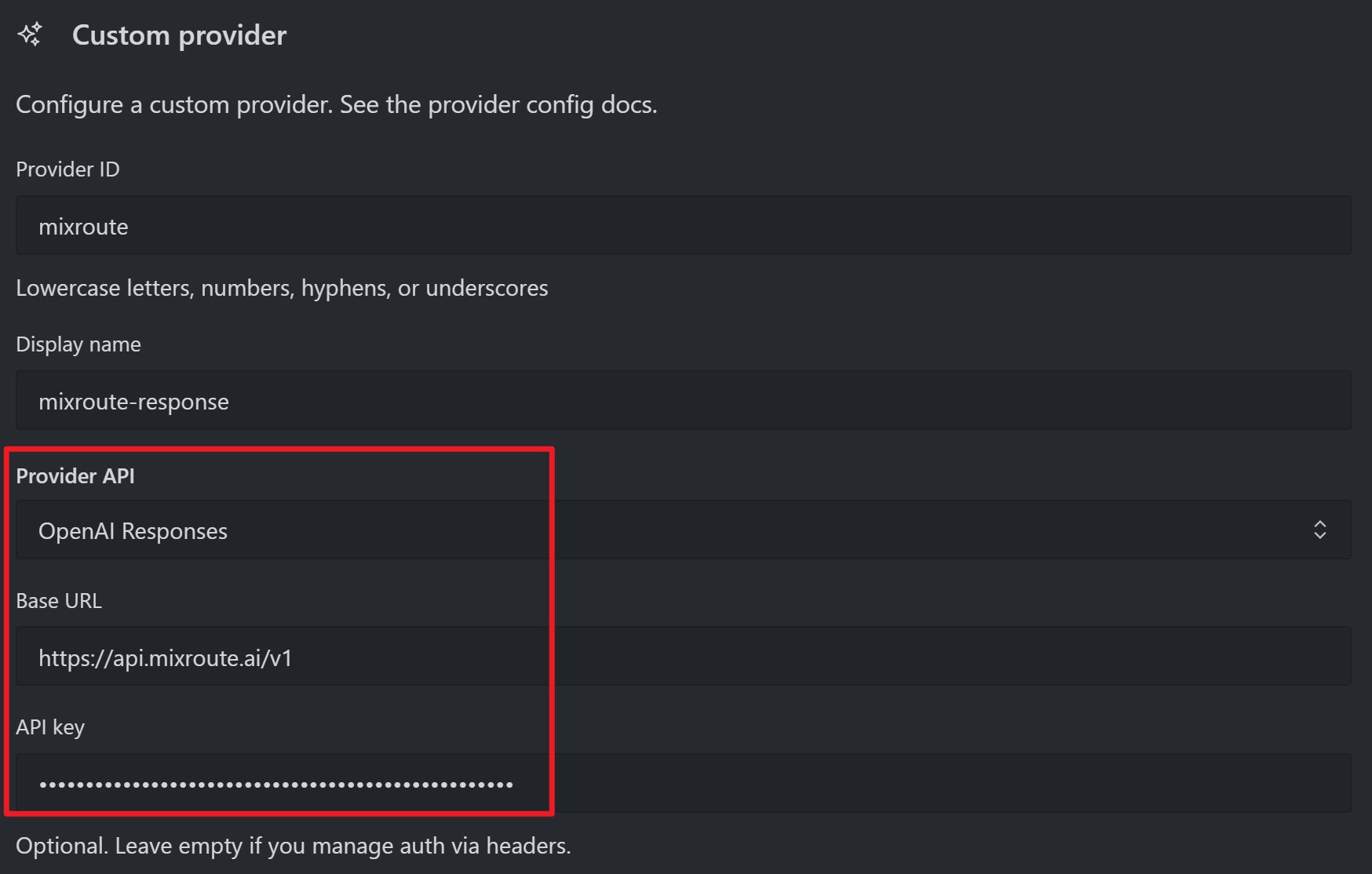
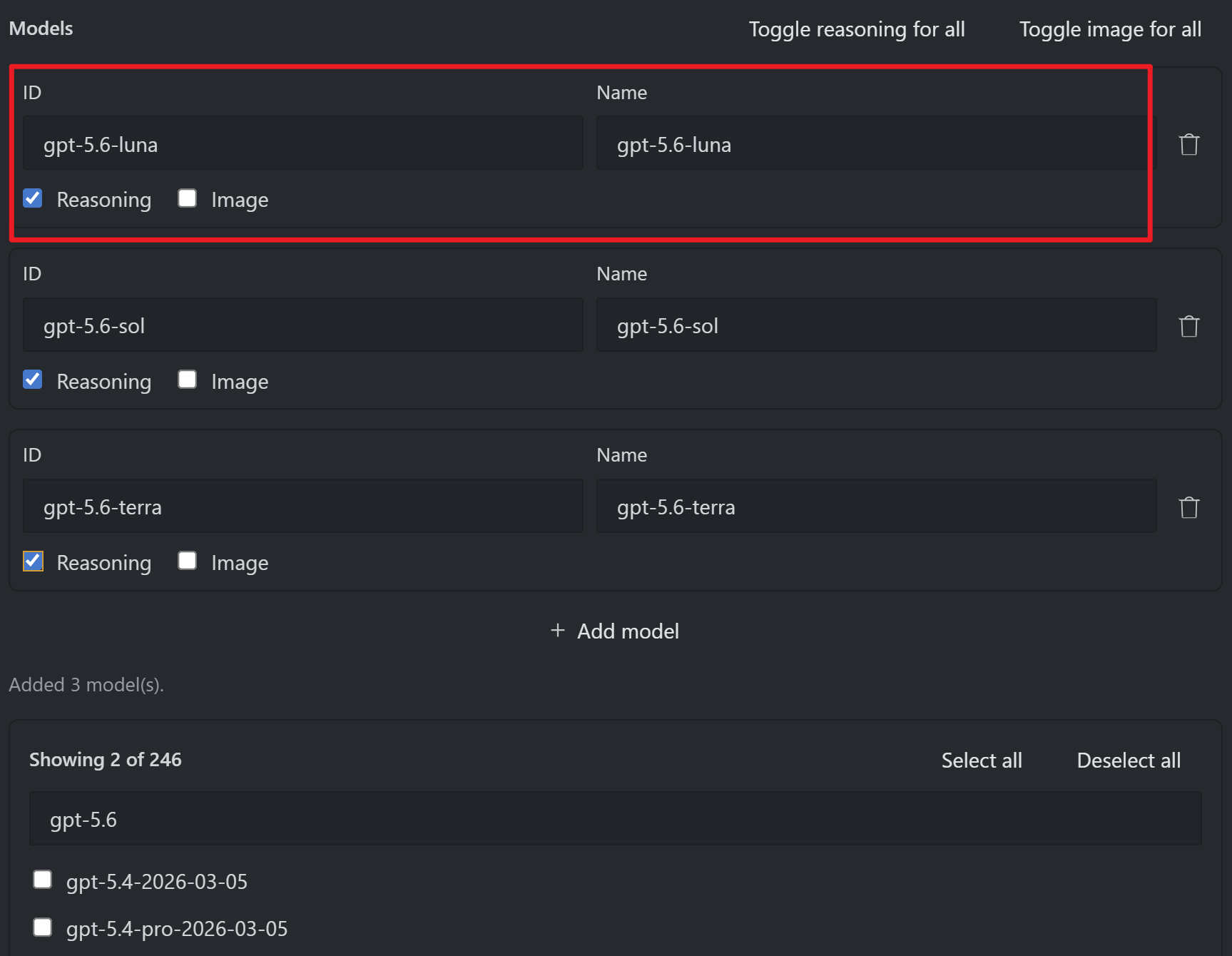
 ### 配置自訂供應商
| 配置項 | 值 |
| - | - |
| **配置檔案** | 保持預設 `default (Active)` |
| **API 提供商** | 下拉選擇「Google Gemini」 |
| **API 金鑰** | 填寫您的 API 金鑰(sk-xxxxx) |
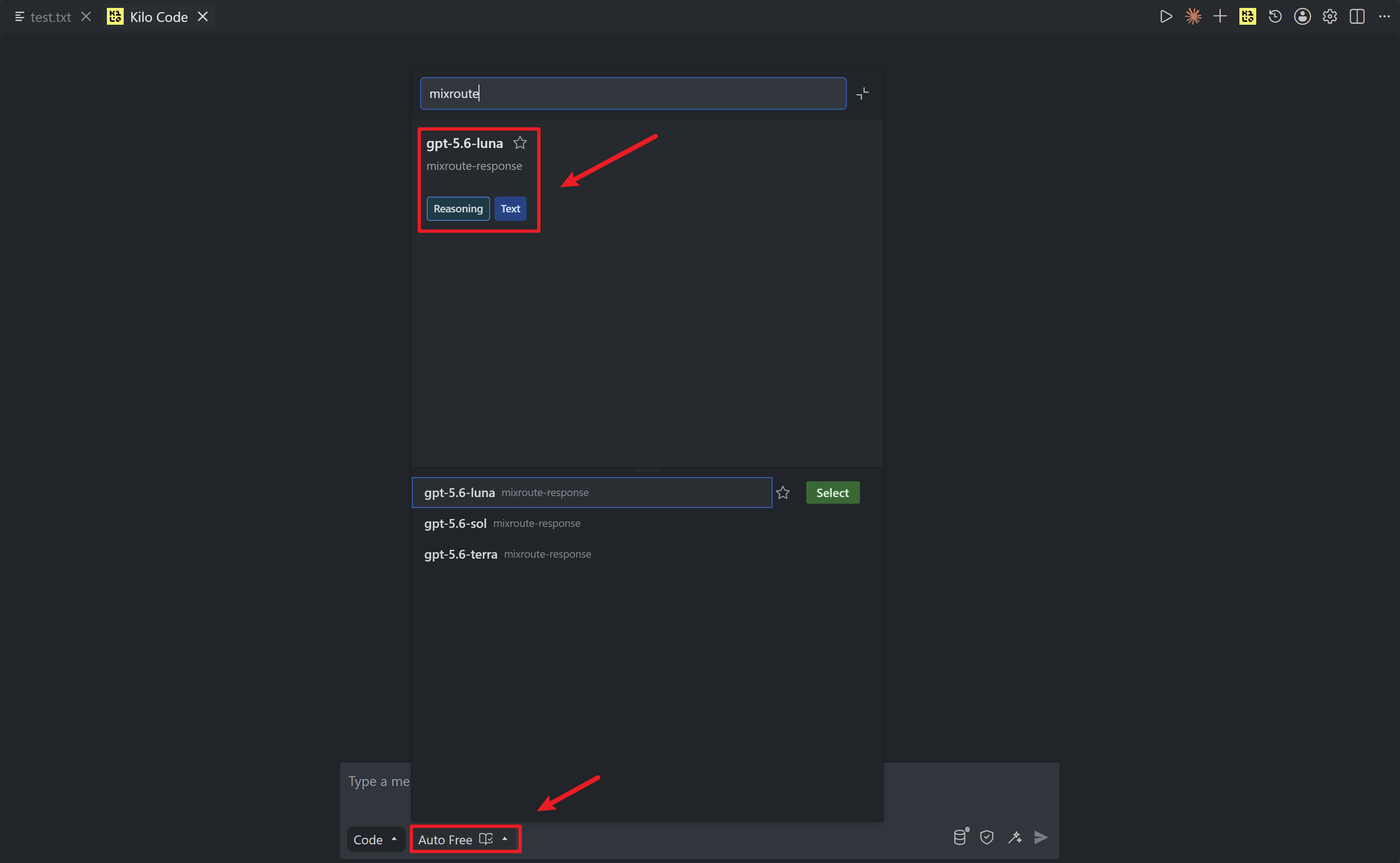
| **模型** | 輸入需要使用的模型名稱 |
| **基礎 URL** | 輸入 `https://api.mixroute.ai` |
### 配置自訂供應商
| 配置項 | 值 |
| - | - |
| **配置檔案** | 保持預設 `default (Active)` |
| **API 提供商** | 下拉選擇「Google Gemini」 |
| **API 金鑰** | 填寫您的 API 金鑰(sk-xxxxx) |
| **模型** | 輸入需要使用的模型名稱 |
| **基礎 URL** | 輸入 `https://api.mixroute.ai` |
 ## 第三步:驗證連線
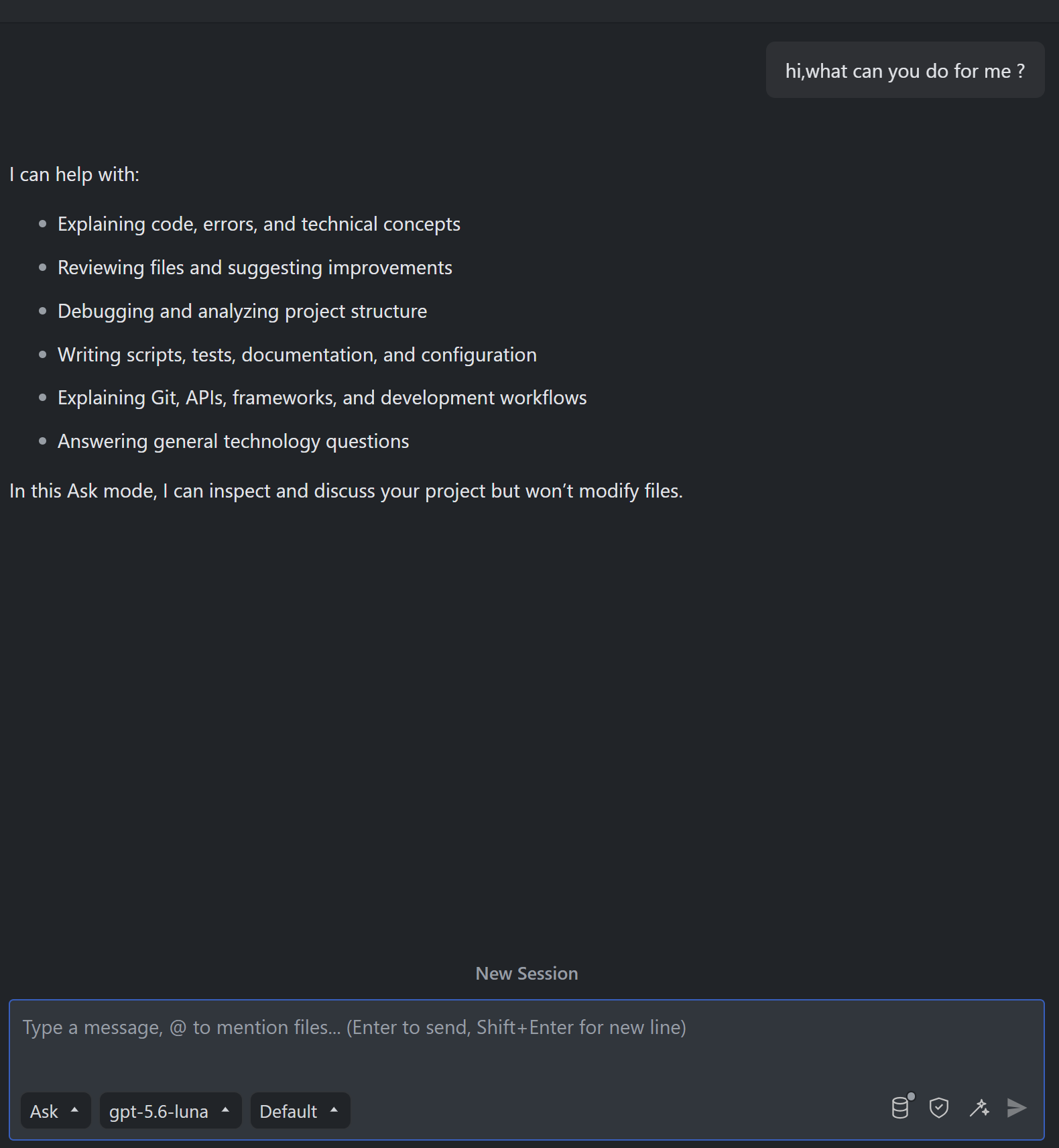
1. 配置完成後,開啟任意程式碼檔案
2. 使用快速鍵 `Ctrl+I` (Windows) 或 `Cmd+I` (macOS) 喚起行內對話輸入框
3. 輸入測試內容(例如「解釋這段程式碼」或「你好」),如果能收到回覆,說明配置成功
## 第三步:驗證連線
1. 配置完成後,開啟任意程式碼檔案
2. 使用快速鍵 `Ctrl+I` (Windows) 或 `Cmd+I` (macOS) 喚起行內對話輸入框
3. 輸入測試內容(例如「解釋這段程式碼」或「你好」),如果能收到回覆,說明配置成功
 ## 推薦模型
| 類型 | 推薦模型 | 特點 |
| - | - | - |
| 程式設計 | `gemini-3-pro-preview` | Google 最新模型,程式設計能力強 |
| 快速回應 | `gemini-2.5-flash` | 回應快,性價比高 |
| 複雜任務 | `claude-sonnet-5` | 推理能力強 |
This documentation is built and hosted on [Mintlify](https://mintlify.com), a developer documentation platform.
## 推薦模型
| 類型 | 推薦模型 | 特點 |
| - | - | - |
| 程式設計 | `gemini-3-pro-preview` | Google 最新模型,程式設計能力強 |
| 快速回應 | `gemini-2.5-flash` | 回應快,性價比高 |
| 複雜任務 | `claude-sonnet-5` | 推理能力強 |
This documentation is built and hosted on [Mintlify](https://mintlify.com), a developer documentation platform.