> ## Documentation Index
> Fetch the complete documentation index at: https://mixroute.ai/docs/llms.txt
> Use this file to discover all available pages before exploring further.
# Claude 外掛(VS Code)
> Claude Code for VS Code 外掛安裝與配置指南
## 第一步:安裝 Claude Code 外掛
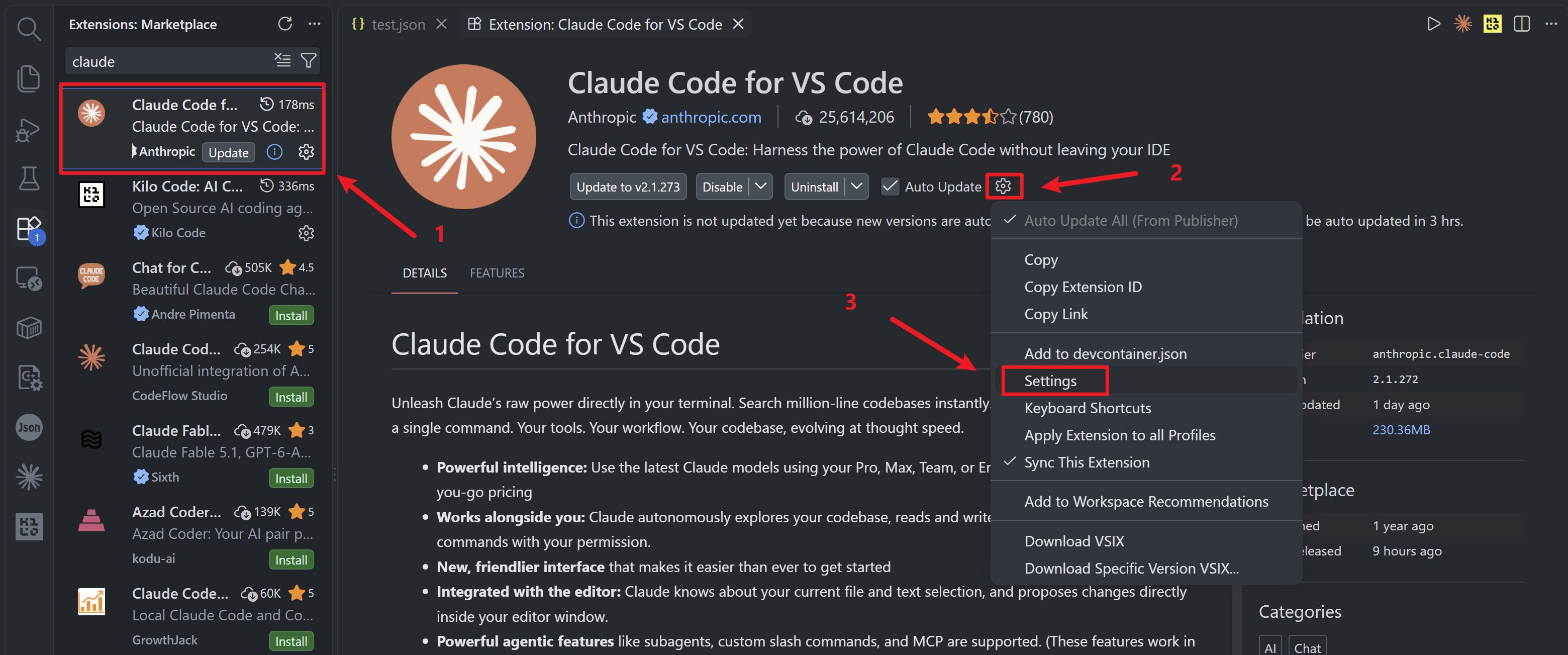
1. 開啟 VS Code 編輯器,進入左側「擴充功能」面板(快速鍵:Ctrl+Shift+X)
2. 在擴充功能市集搜尋「Claude Code for VS Code」,找到 Anthropic 官方發佈的外掛
3. 點擊「安裝」
 ## 第二步:配置 settings.json 檔案
### 開啟配置檔案
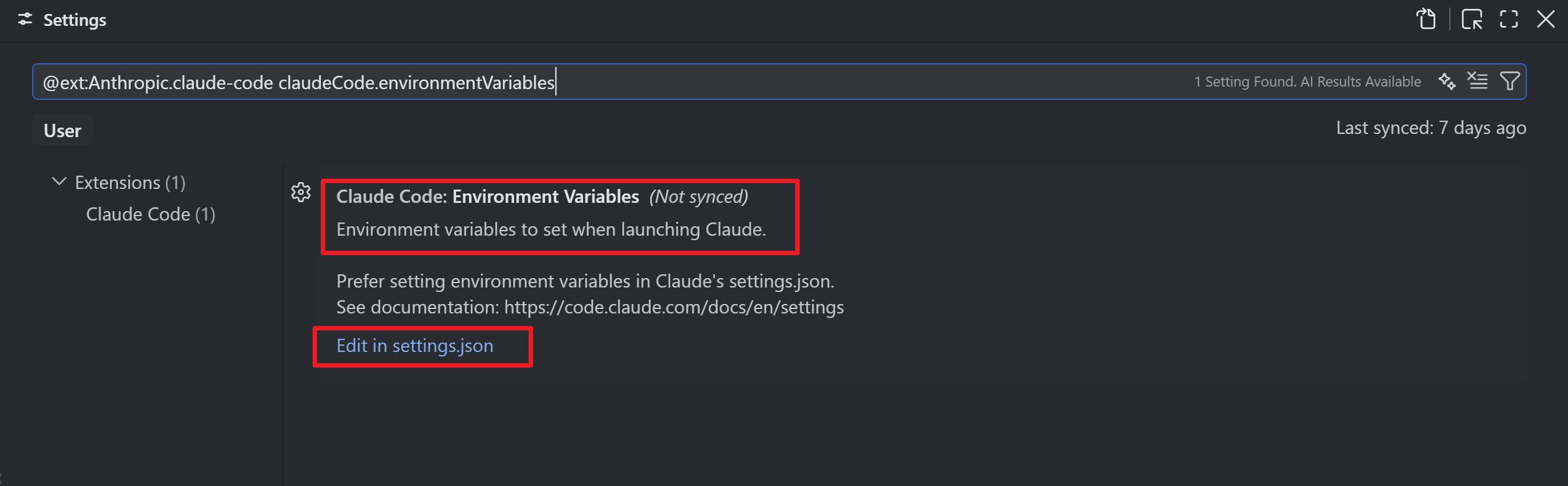
1. 點擊 VS Code 左下角「設定」圖示(或使用快速鍵 Ctrl+,),搜尋「@ext:Anthropic.claude-code」
2. 找到「Claude-code: Environment Variables」選項,點擊「Edit in settings.json」
## 第二步:配置 settings.json 檔案
### 開啟配置檔案
1. 點擊 VS Code 左下角「設定」圖示(或使用快速鍵 Ctrl+,),搜尋「@ext:Anthropic.claude-code」
2. 找到「Claude-code: Environment Variables」選項,點擊「Edit in settings.json」
 ### 新增核心配置
```jsonc theme={null}
{
"claudeCode.preferredLocation": "panel",
"claudeCode.allowDangerouslySkipPermissions": true,
"claudeCode.selectedModel": "claude-sonnet-5",
"claudeCode.environmentVariables": [
{
"name": "ANTHROPIC_BASE_URL",
"value": "https://api.mixroute.ai"
},
{
"name": "ANTHROPIC_AUTH_TOKEN",
"value": "mixroute_api_key"
},
{
"name": "CLAUDE_CODE_DISABLE_EXPERIMENTAL_BETAS",
"value": "1"
}
]
}
```
## 配置說明
| 配置項 | 說明 |
| - | - |
| `claudeCode.preferredLocation` | 外掛顯示位置,可選 `panel`(底部面板)或 `sidebar`(側邊欄) |
| `claudeCode.selectedModel` | 預設使用的模型 |
| `ANTHROPIC_BASE_URL` | MixRoute API 服務位址 |
| `ANTHROPIC_AUTH_TOKEN` | 您的 API 金鑰 |
## 驗證配置
1. 配置完成後,重新啟動 VS Code
2. 開啟命令面板(Ctrl+Shift+P),輸入「Claude」
3. 選擇「Claude Code: Open Panel」開啟外掛面板
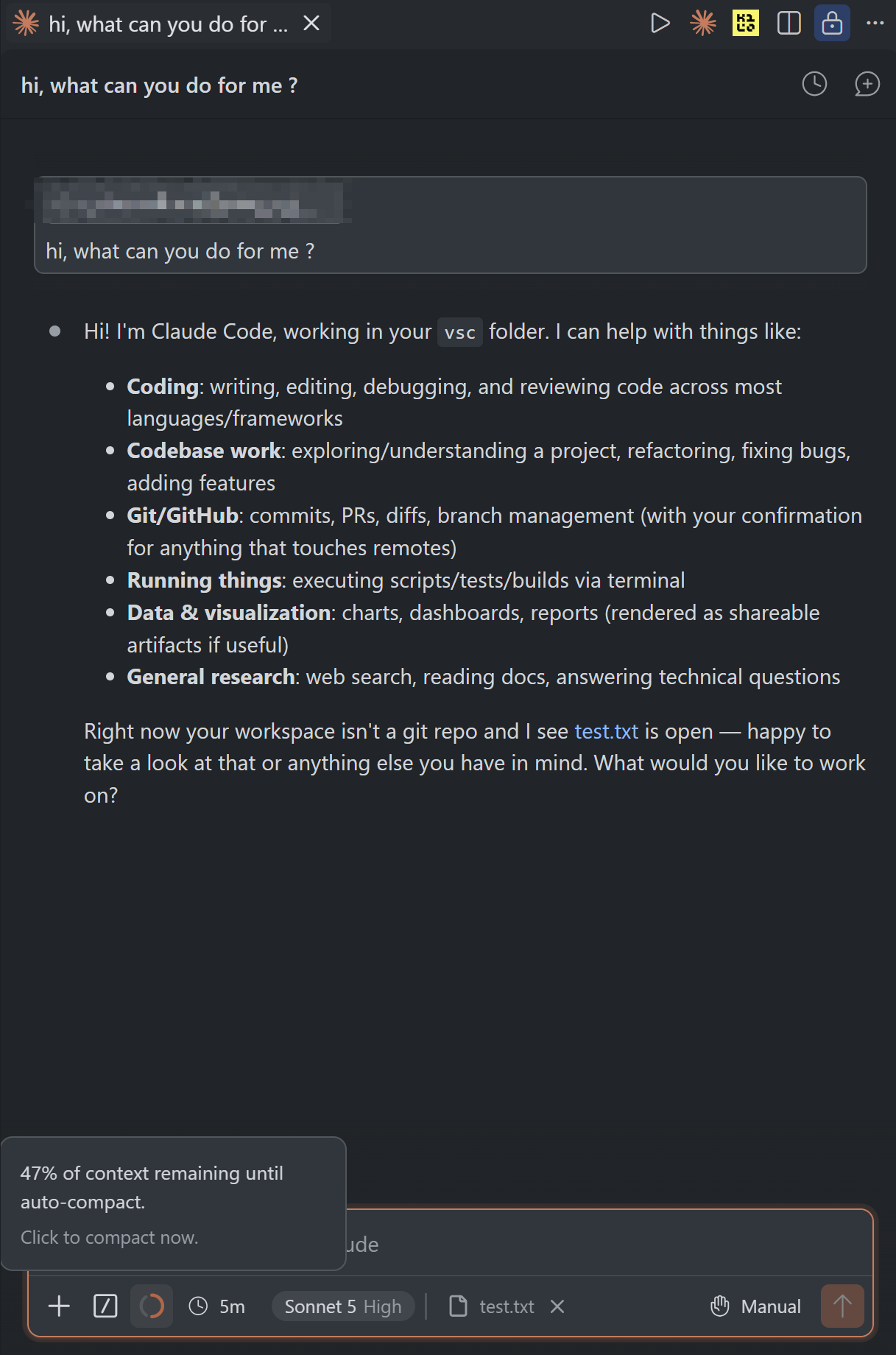
4. 輸入測試問題,如果能收到回覆,說明配置成功
### 新增核心配置
```jsonc theme={null}
{
"claudeCode.preferredLocation": "panel",
"claudeCode.allowDangerouslySkipPermissions": true,
"claudeCode.selectedModel": "claude-sonnet-5",
"claudeCode.environmentVariables": [
{
"name": "ANTHROPIC_BASE_URL",
"value": "https://api.mixroute.ai"
},
{
"name": "ANTHROPIC_AUTH_TOKEN",
"value": "mixroute_api_key"
},
{
"name": "CLAUDE_CODE_DISABLE_EXPERIMENTAL_BETAS",
"value": "1"
}
]
}
```
## 配置說明
| 配置項 | 說明 |
| - | - |
| `claudeCode.preferredLocation` | 外掛顯示位置,可選 `panel`(底部面板)或 `sidebar`(側邊欄) |
| `claudeCode.selectedModel` | 預設使用的模型 |
| `ANTHROPIC_BASE_URL` | MixRoute API 服務位址 |
| `ANTHROPIC_AUTH_TOKEN` | 您的 API 金鑰 |
## 驗證配置
1. 配置完成後,重新啟動 VS Code
2. 開啟命令面板(Ctrl+Shift+P),輸入「Claude」
3. 選擇「Claude Code: Open Panel」開啟外掛面板
4. 輸入測試問題,如果能收到回覆,說明配置成功
 ## 故障處理
### Beta 實驗性功能字段 400 拒絕
```text theme={null}
# 錯誤信息 a
API Error: 400 Unexpected Value(s) `advisor-tool-2026-03-01` for the `anthropic-beta` header.
# 錯誤信息 b
API Error: 400 InvokeModelWithResponseStream: \
operation error bedrock Runtime: InvokeModelWithResponseStream, \
http response error StatusCode: 400 , RequestID: xxx-xxx-xxx-xxx, \
ValidationException: invalid beta flag (request id xxxxxxxx)
```
在`setting.json`設定文件中添加`{"name":"CLAUDE_CODE_DISABLE_EXPERIMENTAL_BETAS","value":1}` ,禁止在請求頭部添加實驗性功能相關的字段。
This documentation is built and hosted on [Mintlify](https://mintlify.com), a developer documentation platform.
## 故障處理
### Beta 實驗性功能字段 400 拒絕
```text theme={null}
# 錯誤信息 a
API Error: 400 Unexpected Value(s) `advisor-tool-2026-03-01` for the `anthropic-beta` header.
# 錯誤信息 b
API Error: 400 InvokeModelWithResponseStream: \
operation error bedrock Runtime: InvokeModelWithResponseStream, \
http response error StatusCode: 400 , RequestID: xxx-xxx-xxx-xxx, \
ValidationException: invalid beta flag (request id xxxxxxxx)
```
在`setting.json`設定文件中添加`{"name":"CLAUDE_CODE_DISABLE_EXPERIMENTAL_BETAS","value":1}` ,禁止在請求頭部添加實驗性功能相關的字段。
This documentation is built and hosted on [Mintlify](https://mintlify.com), a developer documentation platform.